How to Connect Worthy to Claude
Last updated: September 30, 2026
Getting started takes less than five minutes. Here's how:
Step 1: Open Claude Navigate to claude.ai and sign in to your account.
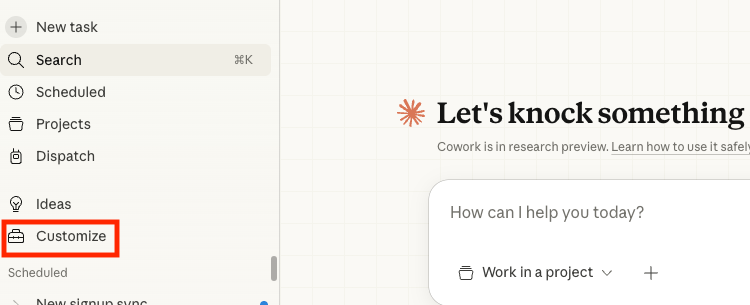
Step 2: Go to Customize → Connectors On the left hand side of your screen click on Customize, and then click on Connectors.
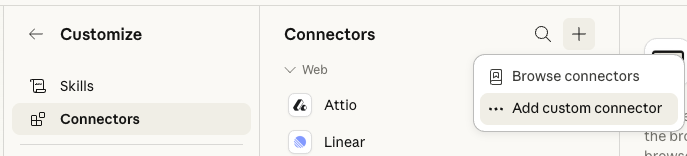
Step 3: Click the + button and then click Add Custom Connector
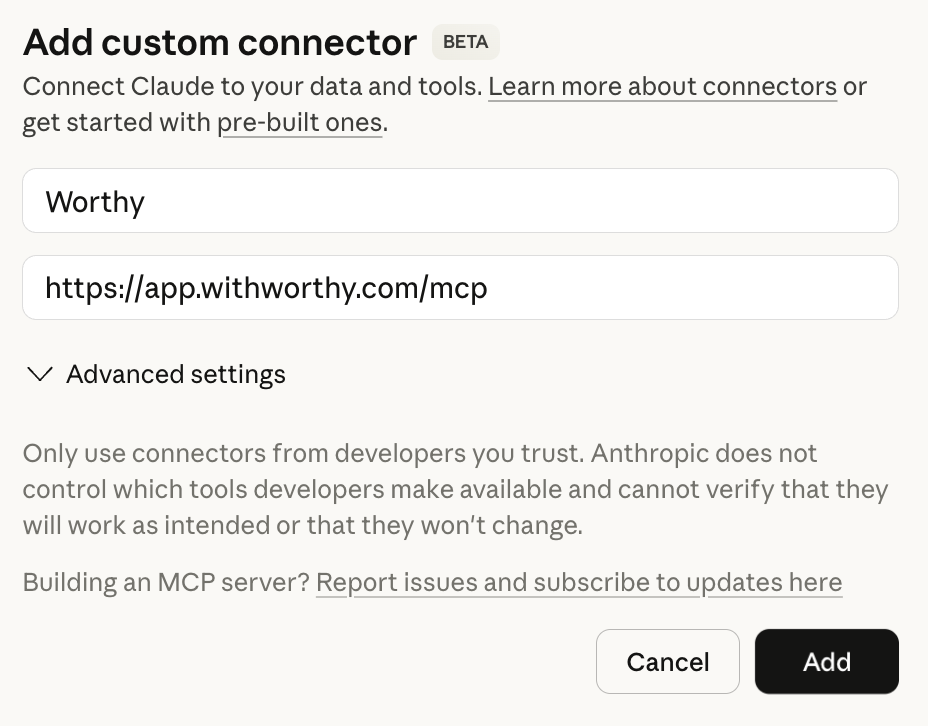
Type in the following information for the Worthy Custom Connector
Name: Worthy
Remote MCP server URL: https://app.withworthy.com/mcp
Step 4: Authorize the Connection →
Fill in the name and URL details to add custom connector and then click “Add”
Step 5. Authorization on app.withworthy.com →
After clicking add, you will see all your connectors. Next to the Worthy connector, click "Connect."

After connecting Claude to Worthy, you'll be redirected to Worthy to officially authorize the integration
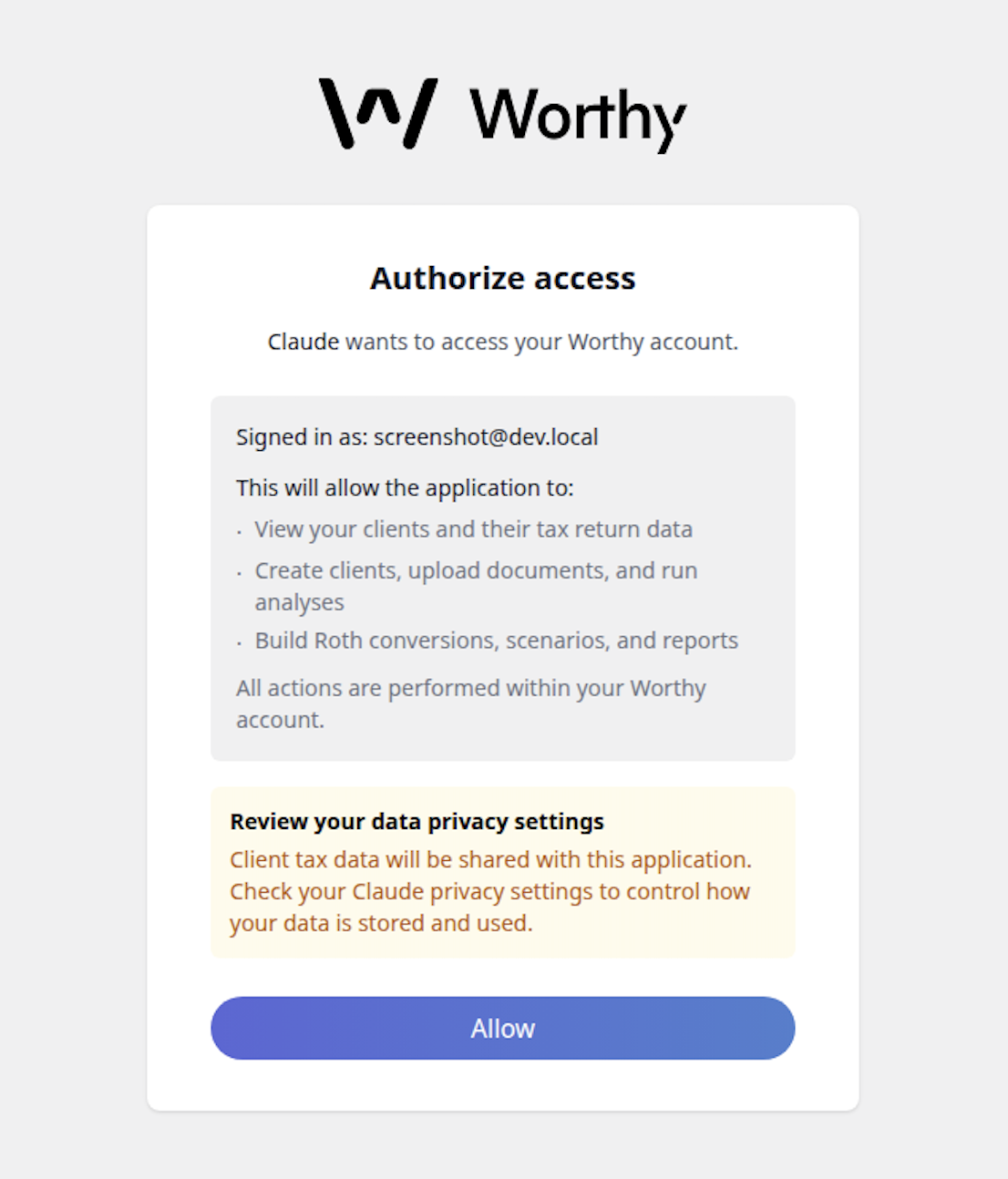
Step 6: Configure and Approve
After authorizing Claude on Worthy, go back to your connectors in Claude, and click on the "Configure" button for Worthy.

Then select your tool permissions (Always allow recommended)
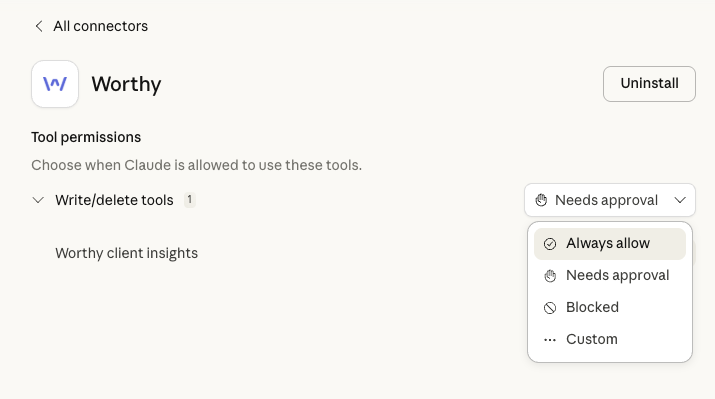
Step 7: Start a Conversation Open a new chat in Claude and try: "What can I do with the Worthy connector?" Claude will walk you through available capabilities and help you run your first query.

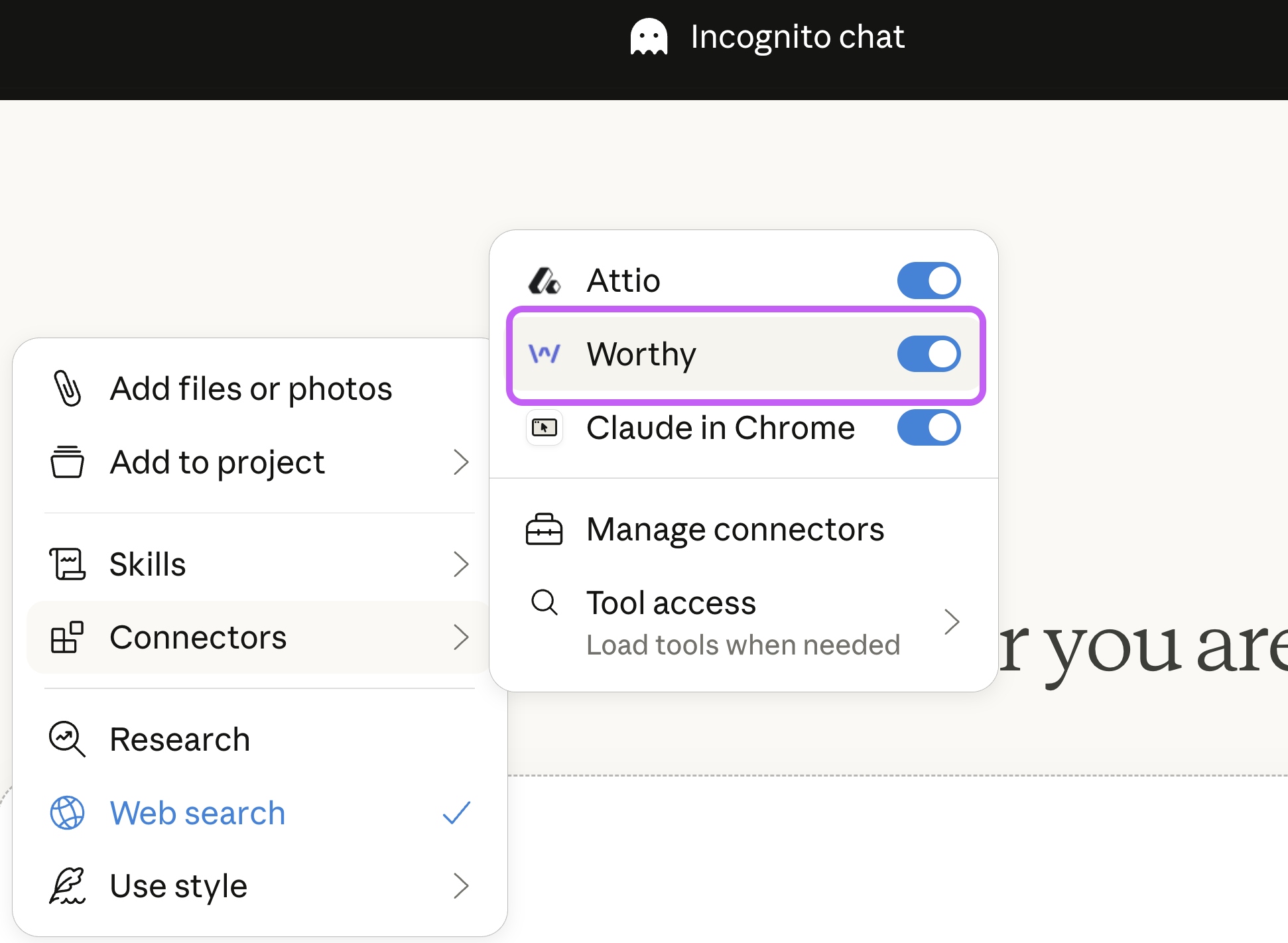
Toggle Control: The connector can be enabled or disabled during any active chat.
Incognito Support: You can use Worthy in incognito mode to prevent Anthropic from saving your session history.