Sharing Clients with Colleagues in Worthy
Last updated: September 30, 2026
Context
Great financial planning is often a team effort. Whether you're collaborating on a complex case, covering for a colleague, or bringing in a specialist, you need a simple way to give another advisor access to a client's full picture. Worthy's Share feature is one of our most useful collaboration tools, making it easy to work on a client together.
With Worthy, you can share any of your clients with any other advisor in your company. When you share a client with a colleague, you both gain full access to work with that client's data — you can ask Worthy questions about the client, run tools like Roth Conversions, understand Equity Compensation documents, and build reports.
How to Share a Client
Open the client you want to share.
Click the "Actions" button.
Click "Share."
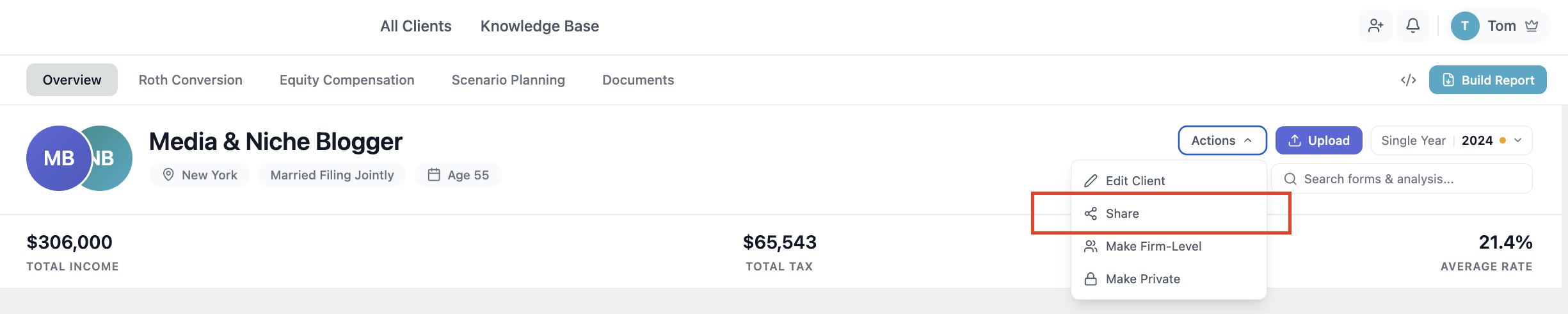
Find your colleague from the list and select them.
Choose their permission level. Give them "Edit" permissions if you want them to be able to take actions on the client; otherwise, they'll have view-only access.
Understanding Permissions
When sharing a client, you control how much your colleague can do:
Edit — Your colleague can take actions on the client, including running tools, building reports, and chatting with the Wothy AI.
View only — Your colleague can see the client's information but cannot take actions or make changes.
Important Notes
You can share a client with any other advisor in your company.
Both advisors gain access to Worthy's full toolset for the shared client, including chat, Roth Conversions, Equity Compensation analysis, and Report Builder.
Be sure to set "Edit" permissions if your colleague needs to take actions — view-only is the default level of access.