Build custom reports for your clients with Worthy
Last updated: September 30, 2026
Worthy's Report Builder lets you put together client-ready PDF reports in minutes. Pull from a library of pre-built sections — covering tax, income, Roth, equity, and more — plus any AI chat responses you've saved, then reorder, preview, and download as a polished PDF.
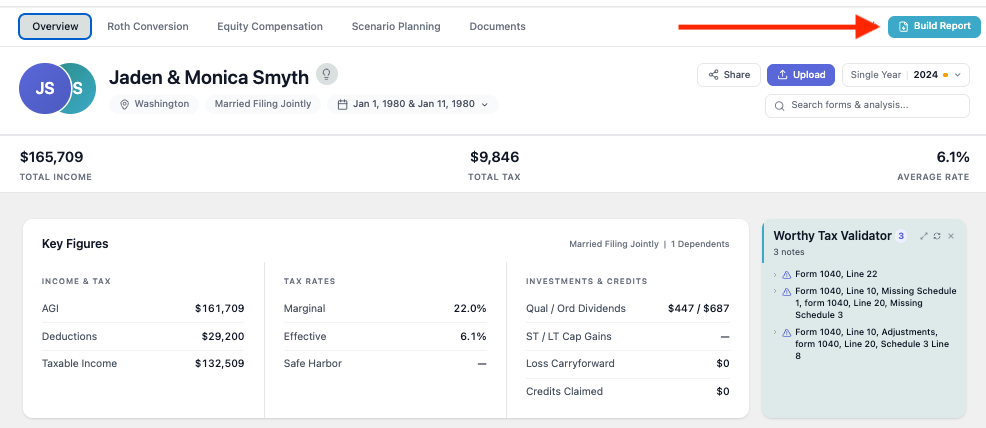
The Report Builder guides you through three steps: Add sections → Reorder & hide → Download PDF. A live preview on the right updates as you build, so you can see exactly how the final PDF will look.
Step 1: Add sections
The left sidebar groups available sections into categories so you can mix and match based on what each client needs:
Core — Key Figures, Income Breakdown, Bracket Analysis, Form 1040 Details
Analysis — LTCG & Dividends, Medicare IRMAA, MAGI Credits
Roth — Tax Bracket Fill (multi-year conversion ladder)
Equity — Equity Vesting Overview, Equity Grant Detail
Worthy AI — any AI chat responses you've saved for the report (more on this below)
Click the + next to any section to add it. Added sections appear in the In Report list at the top of the sidebar. Use the search bar to quickly find a section by name.
Some categories also link out to the source tool — for example, click Open Roth tool to generate more to build additional Roth scenarios before pulling them into the report.
Adding AI chat responses: Any Worthy AI chat response can be pulled into a report. From the chat, click Save for Report on the response you'd like to include. Worthy automatically rewrites the response in client-facing language, and gives you a chance to edit or add to it before saving. Saved responses appear under Worthy AI in the Report Builder sidebar, ready to add to the report like any other section.
Step 2: Reorder and hide sections
Once sections are in the report, you can fine-tune the layout:
Drag sections in the In Report list to reorder them.
Click the eye icon to hide a section without removing it from the list.
Click the trash icon to remove a section entirely.
Click Clear All to start over.
Step 3: Download the PDF
When the report looks right, click Download PDF in the bottom right. The generated PDF includes the client's name, tax year, and the date it was generated.
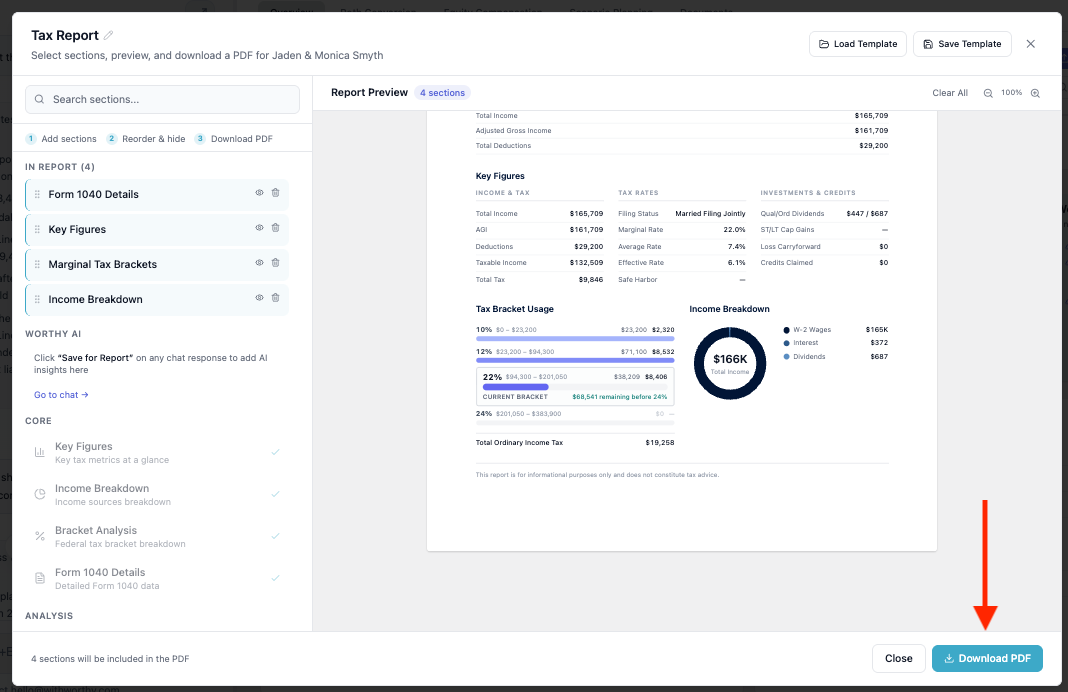
Save a template for reuse: If you've built a report structure you plan to use again — a standard year-end review, for example — click Save Template at the top right. The next time you build a report for another client, click Load Template to apply the same set of sections in one click.
If any questions come up, reach out at hello@withworthy.com.