Creating and Using Custom Prompts
Last updated: September 30, 2026
Context
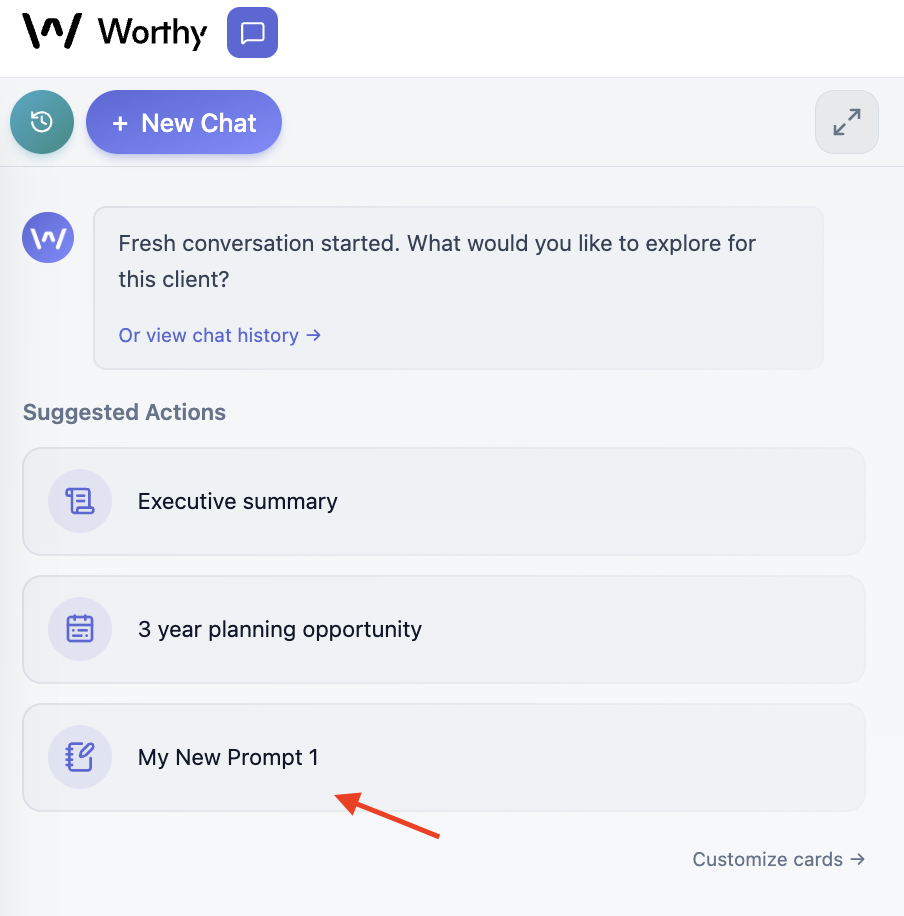
Worthy now lets advisors create their own custom prompts, save them for reuse, and run them with a single click. You can even add your favorites to the three "Suggested Actions" buttons on the new chat page, so the prompts you use most are always one click away.
Creating a Custom Prompt
In the chat, click the folder icon in the bottom left corner. This brings up all of Worthy's suggested prompts.
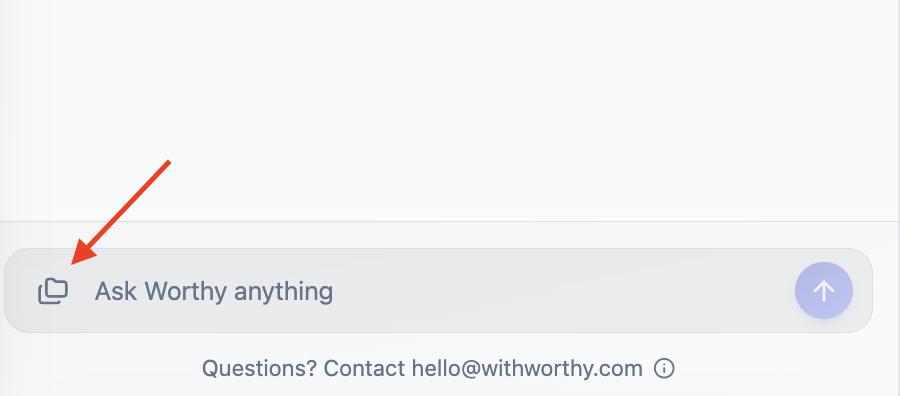
Click the "Write a new prompt" button.
Fill in the details for your prompt:
Name — what your prompt will be called.
Description (optional) — a note to help you remember when or why to run the prompt.
Prompt — the full prompt text Worthy will run.
Show in chat (optional) — the short label that appears in the chat when you run the prompt. If you leave this blank, it defaults to the prompt's name. This keeps long prompts from cluttering the chat. For example, Worthy's "Executive Summary" prompt is quite long, but running it only shows "Executive Summary" in the chat.
Save your prompt.
Once saved, your prompt appears anytime you click the folder icon. Your custom prompts live under the "Yours" section, while Worthy's built-in prompts live under the "Worthy" section.
Adding a Prompt to Your Suggested Actions
You can add any custom prompt to one of the three "Suggested Actions" buttons on the new chat page:
Start a new chat with Worthy.
Below the three Suggested Actions buttons, click "Customize cards."
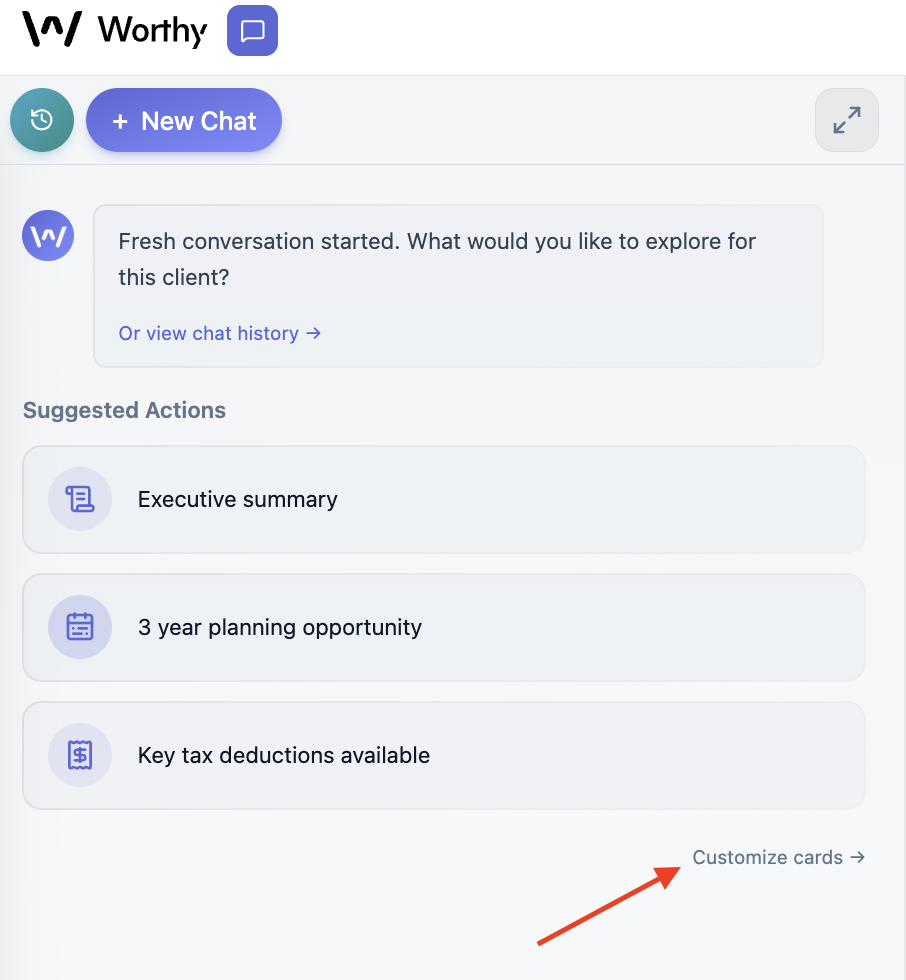
Uncheck the card you want to remove, then check the box next to your custom prompt to add it.
Click "Save."
Your custom prompt will now appear as a one-click Suggested Action whenever you start a new chat.
Important Notes
Custom prompts appear under the "Yours" section when you click the folder icon; Worthy's prompts appear under "Worthy."
The "Show in chat" label is optional and defaults to your prompt's name — useful for keeping long prompts tidy in the chat.
You can swap prompts in and out of your three Suggested Actions buttons anytime via "Customize cards."
For a more in-depth look, watch our video on the Worthy AI chat. If you have any questions, don't hesitate to reach out to us at hello@withworthy.com.