Worthy AI Tips: When to Start a New Chat & Using Memories
Last updated: September 30, 2026
Context
Worthy's AI chat works much like other AI assistants: you can continue an existing conversation, or start a fresh one. Knowing when to do each — and how to use Memories — helps you get the most accurate, organized answers from Worthy.
Continuing vs. Starting a New Chat
Continue in the same chat when you want Worthy to remember the thread of what you're discussing and build on it. Start a new chat when you want a fresh conversation.
When you start a new chat, Worthy still knows everything about the client's uploaded tax documents — that context is always available. You're simply beginning a clean conversation. Advisors often start a new chat to run a fresh scenario, or when moving to a new topic. For example, if a previous chat was all about IRMAA surcharges and you now want to discuss equity compensation, a new chat keeps things focused.
How to Start or Continue a Chat
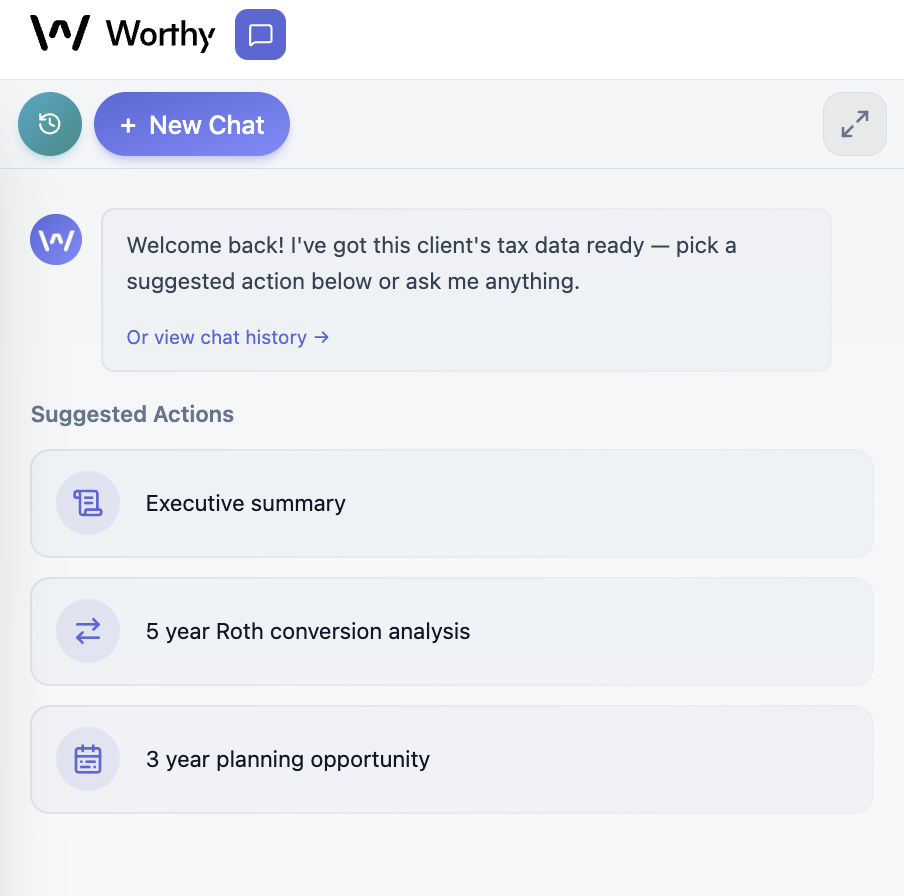
To start a new chat, open the client's chat and click New Chat. Worthy retains full access to the client's uploaded tax documents, so you're only starting the conversation fresh — not losing any context.
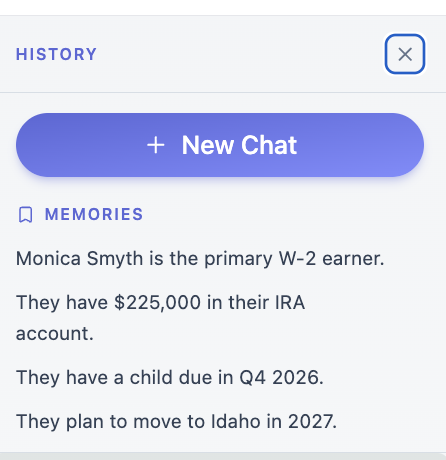
To revisit or continue an earlier conversation, click the Conversation History button — the teal clock icon in the top left corner of the chat — and select the chat you'd like to return to.
Why Start a New Chat?
There are two main reasons:
Chat length limits. A single chat has a 10,000-character limit and will begin to slow down as it approaches that limit. Starting a new chat keeps performance fast.
Keeping topics separate. Many advisors prefer to keep different discussions in their own chats — for example, a 10-year planning scenario, a Roth Conversion, and an Equity Compensation analysis each in a separate chat. This makes it easy to model different scenarios without mixing them together.
Worthy Memories
Memories let you save important details so Worthy remembers them for a client across chats. To add a memory, just ask Worthy directly in the chat. For example: "My client has $850,000 in her Roth IRA, please save this to memories." Or, "Please refer to my client as Jimmy, instead of James."
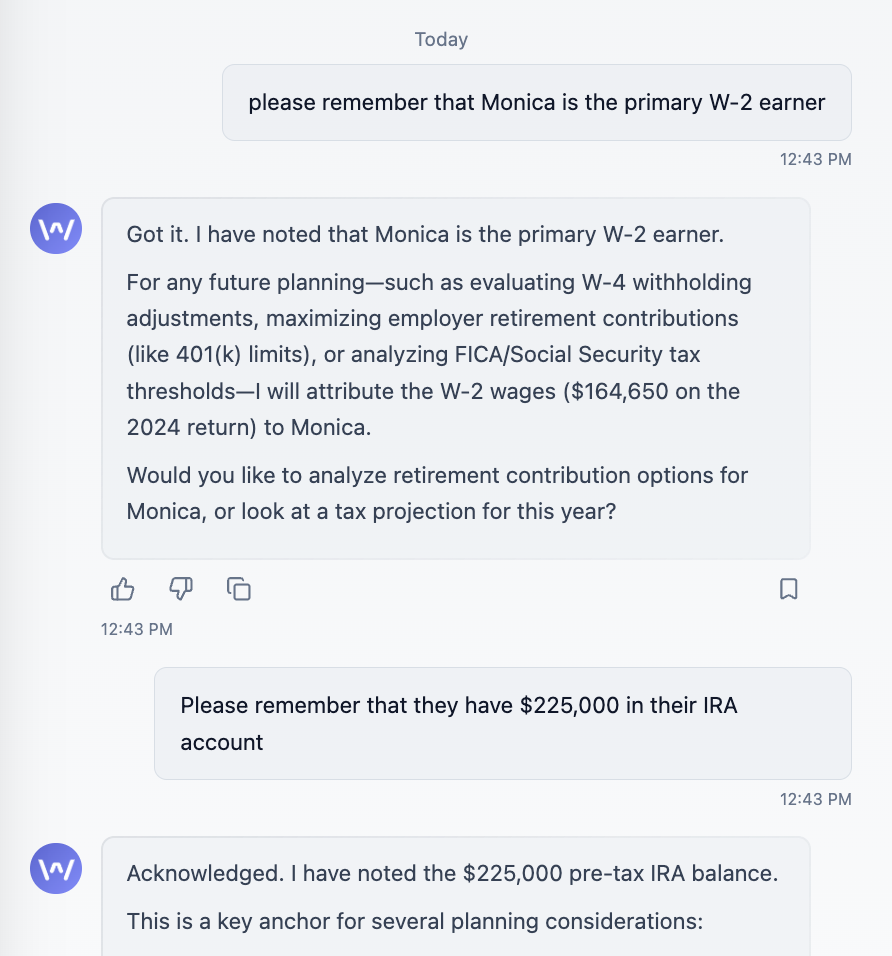
Worthy will save the detail, and it will apply to that specific client across all of their chats — so you don't have to repeat key facts each time you start a new conversation.
Viewing and Deleting Memories
To view saved memories, click the Conversation History button (the teal clock icon in the top left corner of the chat). To delete a memory, hover over it and click the trash icon.
Important Notes
Starting a new chat does not lose access to uploaded tax documents — that context is always available.
Single chats are limited to 10,000 characters and slow down near that limit.
Keeping separate topics in separate chats makes it easier to model and compare scenarios.
Memories are saved per client and persist across that client's chats.
Memories can be viewed via the Conversation History button and deleted by hovering and clicking the trash icon.